
You can add a message, image, link and more to your form in the fields tab.
To add a link to your form:
- Click and open up a form
- Click “Edit” in the top right corner of the page
- Open up the “fields” tab and click “Add a new field”
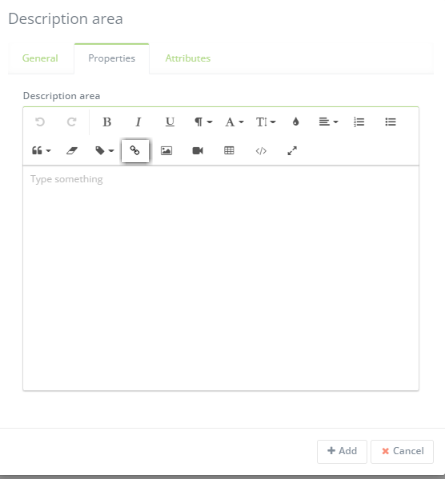
- Select “Description Area”
- Add a header to the description area and then select the “Properties” tab
- Here you can insert a link by clicking the link icon. Paste the link you want to add to the form. You can preview the form to see how it looks and to make sure the link works properly.
